Photo Enhancer for Contrast and Color
Adjust color and contrast with the photo enhancer. Set the strength from 0.01 to 1 and compare skin tones, highlights, and shadows before exporting.
Adjusts contrast and saturation. Start with Soft for skin tones and bright highlights.
Processed in your browser. No upload or credits required.Source example · not your result
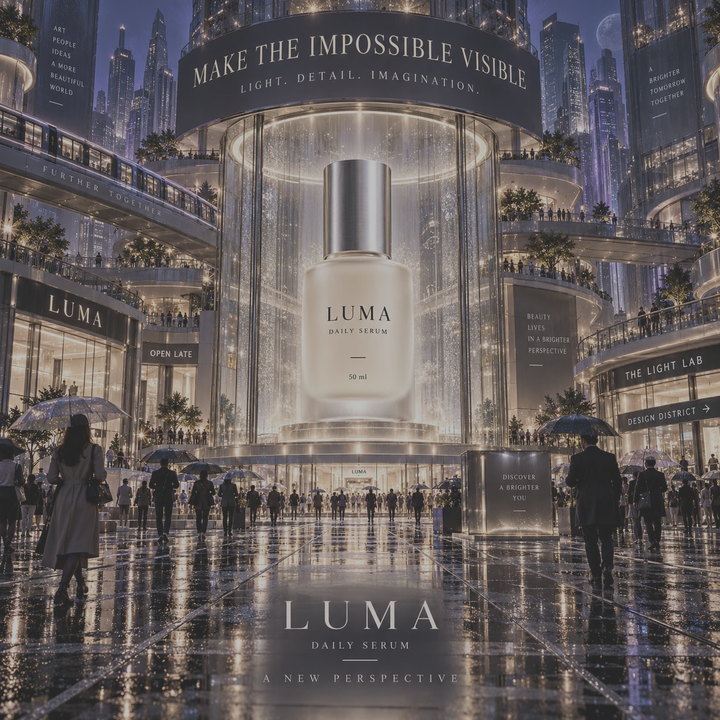
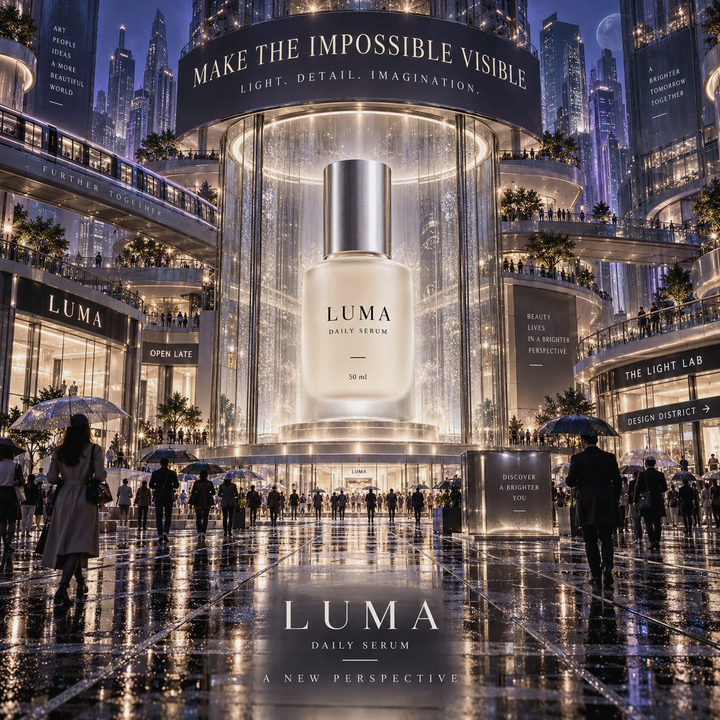
Examples
Dim interior
Muted landscape
Product color
Soft food photo
Backlit subject
How to use photo enhancer
Upload one local image
Choose a source image of up to 20MB and 12 megapixels, preferably without repeated compression.
Choose enhancement strength
Start with Soft or Natural before trying Vivid. Avoid clipped highlights and compare skin tones and product colors with the source.
Compare and export
Run local processing, inspect edges, skin tones and lettering at full size, then download a new image copy.
Tool specificationsBrowser-local processing uses no generation credits. Inputs support up to 20MB and 12MP; outputs support up to 16MP with no side exceeding 8192px.
Tips and use cases
Frequently asked questions
Which images work best?
Best for flat color and low contrast where detail is still present. Start gently when checking skin tones, white products and highlights.
What are the limits?
This browser tool adjusts contrast and saturation. It does not reconstruct detail, repair blur or increase resolution. Information lost in clipped highlights or shadows cannot be recovered; high strength can distort colors or clip tones.
What are the size limits?
Browser-local processing uses no generation credits. Inputs support up to 20MB and 12MP; outputs support up to 16MP with no side exceeding 8192px.
Is the original uploaded?
The local workflow runs in your browser and downloads a new copy. Your source remains on your device.